
8 minutes reading time
Updated 07 Mar 2026
It all started with waybar on Wayland a few years ago. Then a brief barless era while I was enjoying my new wallpapers. Then I switch to eww, and this was pretty fun. "Lisping" GTK widgets, I got pretty close to what I wanted to achieve. A lot of things worked out of the box on FreeBSD, including system stats and network. I still had to write a few scripts for things like system tray, volume controls, etc. But nothing special, mostly wrappers.
For quite some time eww was enough for me. But the development slowed down, and GTK3 became a drag. I started thinking about the replacement and discovered Quickshell.
Well, this is another level. Qt to drive the whole desktop environment. And with simple QML syntax. Of course it could be pretty something sometimes (or more often), but definitely a breeze after XML. The current release version is 0.2.1, but I compile from my fork to get the network state, audio controls, system tray icons, and mango support.
I still need to work on these, though everything is pretty stable. No polling anywhere on this level. Some widgets in the bar do poll, but there is an option to turn them off (useful in low-power mode). Patches can be cherry-picked on top of the fbsd branch of my quickshell fork with no conflicts (so far).
TopBar is structured as a git submodule, so it could be easily injected into any root file:
//@ pragma UseQApplication
import Quickshell
import QtQuick
// imports the topbar directory (git submodule)
import qs.topbar
ShellRoot {
// TopBar modules
TopBar {}
Wallpaper {}
// more of a future-proof measure
Connections {
target: Quickshell
function onLastWindowClosed() {
Qtquit
}
}
Component.onCompleted: {
// some components do not work as expected without a full cycle
QuickshellwatchFiles = false
}
}To start, just add a submodule to your current configuration repository (it must mirror $HOME):
git submodule add https://github.com/charlesrocket/topbar .config/quickshell/topbarOr manually copy it inside of the Quickshell's directory (~/.config/quickshell).
I noticed that live refresh (watch) does not work for some widgets as expected, so I just turned it off to save the memory.
The Settings.qml file is used to override default values in the main config file (Config.qml). It should be placed next to the main shell.qml file.
pragma Singleton

import QtQuick
import Quickshell

Singleton {
    readonly property var general: QtObject {
        readonly property string locale: "en_US"
        readonly property string font: "Hack Nerd Font"
        readonly property int fontSize: 14
        readonly property int radius: 8
        readonly property int borderWidth: 0
        readonly property int animDuration: 250
        readonly property string wallpaper: "~/Pictures/hardcoding/zaki-aby-fisheye-top-0-064.jpg"
    }

    readonly property var bar: QtObject {
        readonly property int height: 30
        readonly property int padding: 8

        readonly property var title: QtObject {
            readonly property int width: 400
        }
    }

    readonly property var desktop: QtObject {
        readonly property bool launcher: true
        readonly property bool osd: true
    }

    property var dashboard: QtObject {
        property var player: QtObject {
            property bool queueButtons: true
        }
    }

    property var notifications: QtObject {
        property bool enabled: true
        property int width: 300
    }

    readonly property var widgets: QtObject {
        readonly property bool workspaces: true
        readonly property bool battery: true
        readonly property bool network: true
        readonly property bool bluetooth: true
        readonly property bool audio: true
        readonly property bool title: true
        readonly property bool language: true
        readonly property bool weather: true
        readonly property bool clock: true
        readonly property bool stats: true
        readonly property bool tray: true
    }

    readonly property var lockscreen: QtObject {
        readonly property bool clock: true
        readonly property bool battery: true
        readonly property bool buttons: true
        readonly property string wallpaper: "~/Pictures/hardcoding/zaki-aby-general-shot.jpg"
        readonly property bool shadows: false
        readonly property bool username: true
        readonly property bool icon: true
    }

    readonly property var session: QtObject {
        readonly property var commands: QtObject {
            readonly property string lock: "quickshell ipc call topbar lock"
            readonly property string logout: "pkill mango"
            readonly property string suspend: "zzz"
            readonly property string hibernate: "acpiconf -s 4"
            readonly property string shutdown: "shutdown -p now"
            readonly property string reboot: "shutdown -r now"
        }
    }
}
The configuration window allows on-the-fly changes and can be called via IPC: qs ipc call topbar config.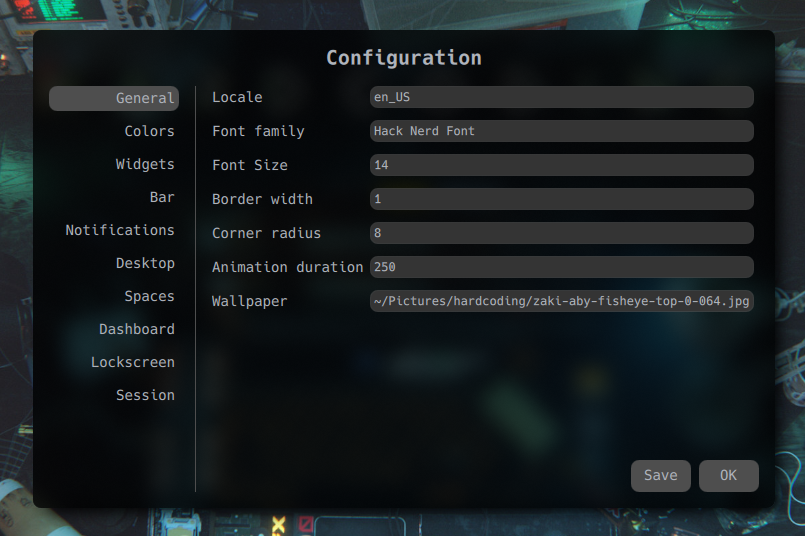
It will write the configuration in the Settings.qml file via Save button.
It is not just a bar anymore. TopBar can handle pretty much everything in the desktop environment, including the application launcher, lock screen, wallpaper, and whatever the desktop might need.
Right now there are two independent modules available: Wallpaper and TopBar. Both are configurable via settings.
Because this is Wayland, we cannot just slap a context menu onto the bar. The main window that holds the bar will clip everything that spills outside of its borders. To work around this, I used to rely on horizontal sliders to keep the UI elements within the bar's boundaries. This works very well with eww and quickshell, but a busy bar has a very limited amount of real estate to facilitate all the elements in these sliders, and reaching neighboring elements sometimes might be a bit awkward. With Quickshell, one could deploy the main window (PanelWindow) that spans across the whole desktop surface and set the bar as a small rectangle on the top (or any other location). The issue with this approach is that there is no way to interact with any other desktop element due to the bar's window covering the whole surface. To resolve this, we can use Region with the window's mask property:
PanelWindow {
id: root
// simple single screen option here
property var screen: Quickshellscreens0
anchors {
top: true
left: true
right: true
}
mask: itemsRegions
color: "transparent"
implicitHeight: screenheight
// this reserves the space for the bar
exclusiveZone: barvisible ? barheight + Configbarpadding : 0
Rectangle {
id: bar
y: 0
anchors.horizontalCenter: parenthorizontalCenter
implicitWidth: rootscreenwidth
implicitHeight: Configbarheight
border.width: ConfiggeneralborderWidth
border.color: Configcolorsborder
height: Configbarheight
color: Configcolorsbg
radius: ConfiggeneralcornerRadius
// this offloads all bar components when deactivated
// useful in some cases (full screen/game mode, etc)
Loader {
active: StatesbarEnabled
visible: StatesbarEnabled
Layout.alignment: QtAlignVCenter
anchors.fill: parent
anchors.leftMargin: 13
anchors.rightMargin: 12
sourceComponent: RowLayout {
Bar.Left {
Layout.fillWidth: true
Layout.minimumWidth: 0
Layout.alignment: QtAlignLeft
}
Bar.Center {
Layout.fillWidth: false
Layout.preferredWidth: 400
Layout.alignment: QtAlignHCenter
}
Bar.Right {
Layout.fillWidth: true
Layout.minimumWidth: 0
Layout.alignment: QtAlignRight
}
}
}
}
// iterates over all window components and
// creates their regions
Variants {
id: regions
model: rootcontentItemchildren
delegate: Region {
required property Item modelData
item: modelData
}
}
// regions for all window components
Region {
id: itemsRegions
regions: regionsinstances
}
}This deploys a transparent window that covers the whole desktop (via anchors). The main bar is a rectangle with some elements on top of that window (y: 0). itemsRegions masks all of the bar's elements, allowing clicks outside of their regions to pass through. Now we can interact with the bar and any other window on the desktop surface.
After converting some sliders into dropdown menus, I wanted to go further and blend these menus with the bar. QML has a neat Shape class that allows drawing 2D objects using the surface's coordinates. The concept is pretty simple: define a ShapePath and all the lines that it must include. So if I want a straight line from left to right, all I need is PathLine { x: 50; y: 0 }. This will draw a 50px-long line from the start coordinates to the right. x: -50 will do the same but in the opposite direction. For curved lines we can use PathArc which also takes x/y radius in addition to the coordinates.
Shape {
preferredRendererType: ShapeCurveRenderer
anchors.fill: parent
ShapePath {
strokeColor: Configcolorsborder
strokeWidth: ConfiggeneralborderWidth > 0 ? ConfiggeneralborderWidth : -1
fillColor: StatesecoMode ? Configcolorsbge : Configcolorsbg
// relative to 0:0
// this would be the top left corner of the container
// starting from the most-left position
// which is the start of a ramp (-14)
startX: -ConfiggeneralcornerRadius * 2
startY: 0
// drawing the arc at the even radius
PathArc {
x: 0
y: ConfiggeneralcornerRadius * 2
radiusX: ConfiggeneralcornerRadius * 2
radiusY: ConfiggeneralcornerRadius * 2
}
// now we have reached the container
// from here we just draw a regular rectangle
// where the container borders would be
PathLine {
x: 0
y: dropdownheight - ConfiggeneralcornerRadius
}
// first round corner at the bottom
PathArc {
x: ConfiggeneralcornerRadius
y: dropdownheight
direction: PathArcCounterclockwise
radiusX: ConfiggeneralcornerRadius
radiusY: ConfiggeneralcornerRadius
}
// straight line at the bottom
PathLine {
x: dropdownwidth - ConfiggeneralcornerRadius
y: dropdownheight
}
// another round corner
PathArc {
x: dropdownwidth
y: dropdownheight - ConfiggeneralcornerRadius
direction: PathArcCounterclockwise
radiusX: ConfiggeneralcornerRadius
radiusY: ConfiggeneralcornerRadius
}
// all the way up to where we are going to
// start drawing another ramp
PathLine {
x: dropdownwidth
y: ConfiggeneralcornerRadius * 2
}
// another ramp completes the rectangle
PathArc {
x: dropdownwidth + ConfiggeneralcornerRadius * 2
y: 0
radiusX: ConfiggeneralcornerRadius * 2
radiusY: ConfiggeneralcornerRadius * 2
}
}
}This would produce a rectangle with curved "ramps" on its top sides. Since the ramps must be outside the main container, the start position is negative (-Config.general.cornerRadius * 2, and the value of cornerRadius here is 8).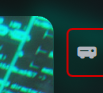
Now the hardest part—attaching this shape to a widget. I tried to pass the main bar object down to all the menu widgets, but since the bar is defined at the very top of the tree, passing it felt too inefficient. To resolve this, I had to refactor all the widgets with menus to align them on the same base height. Right-hand widgets were no issue since they are all just text icons with a wrapper. But the center widget was an issue—it has a different layout structure, so its menu was always a few pixels off the base height. Eventually I came up with a hybrid approach:
Item {
id: root
// manual vertical offset
property int offset: 0
// the source of the menu
required property var boxParent
// the content of the dropdown
default property alias content: contentAreadata
Item {
id: dropdown
visible: false
width: contentAreaimplicitWidth
height: contentAreaimplicitHeight
x: {
const mapped = rootboxParentmapToItemrootboxParent 0 0
return mappedx +rootboxParentwidth / 2 -dropdownwidth / 2
}
y: {
ifrootoffset > 0
return rootoffset
let topItem = rootparent
whiletopItem && topItemparent
topItem = topItemparent
iftopItem
const boxToTop = rootboxParentmapToItemtopItem 0 0
const parentToTop = rootparentmapToItemtopItem 0 0
const result = boxToTopy - parentToTopy + rootboxParentheight +Configbarpadding - 1
return result
const mapped = rootboxParentmapToItemrootparent 0 0
const result = mappedy + rootboxParentheight +Configbarpadding - 1
return result
}
Item {
id: contentArea
z: 0
implicitWidth: childrenlength > 0 ? children0implicitWidth : 0
implicitHeight: childrenlength > 0 ? children0implicitHeight : 0
}
HoverHandler {
id: dropdownHover
onHoveredChanged: {
ifhovered
hideTimerstop
else
hideTimerstart
}
}
}
Timer {
id: hideTimer
interval: 120
repeat: false
onTriggered: {
if!dropdownHoverhovered
rootshow = false
StatesdropdownRevealed = false
// right now only one menu can be opened
// since they are triggered by hovers only
ifStatesdashboardPresent
StatesdashboardPresent = false
}
}
}Dashboard dropdown:
Dropdown {
id: dashboard
boxParent: root
Rectangle {
color: "transparent"
radius: ConfiggeneralcornerRadius
implicitWidth: layoutimplicitWidth + 651
implicitHeight: layoutimplicitHeight +ConfiggeneralborderWidth > 0 ? 424 : 420
ColumnLayout {
id: layout
Item {
Layout.fillHeight: true
Layout.fillWidth: true
Dashboard {}
}
}
}
}
MouseArea {
id: mouseArea
anchors.fill: parent
hoverEnabled: true
onEntered: {
dashboardshow = true
StatesdashboardPresent = true
}
onExited: {
// do not close it right away
dashboardtimerstart
}
}Here I use a boxParent property that holds the parent container of the dropdown menu (a text icon in most cases) to calculate the position of the menu container. Horizontal position is simple—we just calculate the middle of a parent container. But things get complicated with vertical positions due to different layouts used by widget containers. So we have to traverse up to get the higher container that would have a more general base height that is not influenced by the size of text characters.
In the case of a bespoke widget, we can use an offset property to manually align the menu at the specific height.
I am still not sure how I feel about borders but decided to give it a try nonetheless. At first, I kept dropdowns separate from the bar—this worked flawlessly for the borderless layout. But there is no way to have a clean connection between the dropdown strokes and the bar strokes. So my next move was to merge dropdowns with the bar, making the bar object fully dynamic. For this to work, I had to drop the bar's rectangle borders (setting them to 0) and manually draw a shape around that rectangle. With PathMove I managed to create a gap for the dropdown to allow seamless transition from the bar border to the dropdown.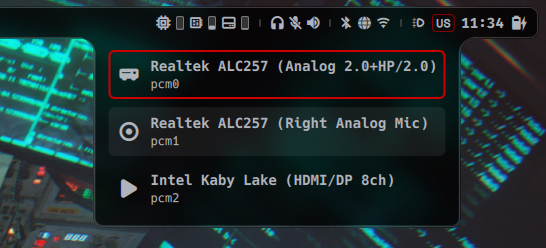
Right now the dynamic border is turned off in favor of shadows, but I might revisit this in the future.
Some of the features could be called via external commands. To get the full list of all available commands, use quickshell ipc call show:
target audio
  function volumeUp(): void
  function toggleMute(): void
  function volumeDown(): void
target topbar
  function reveal(): void
  function launcher(): void
  function logout(): void
  function hide(): void
  function lock(): void
  function config(): void
These could be bound to custom key combinations or media keys in the compositor or called from the command line.
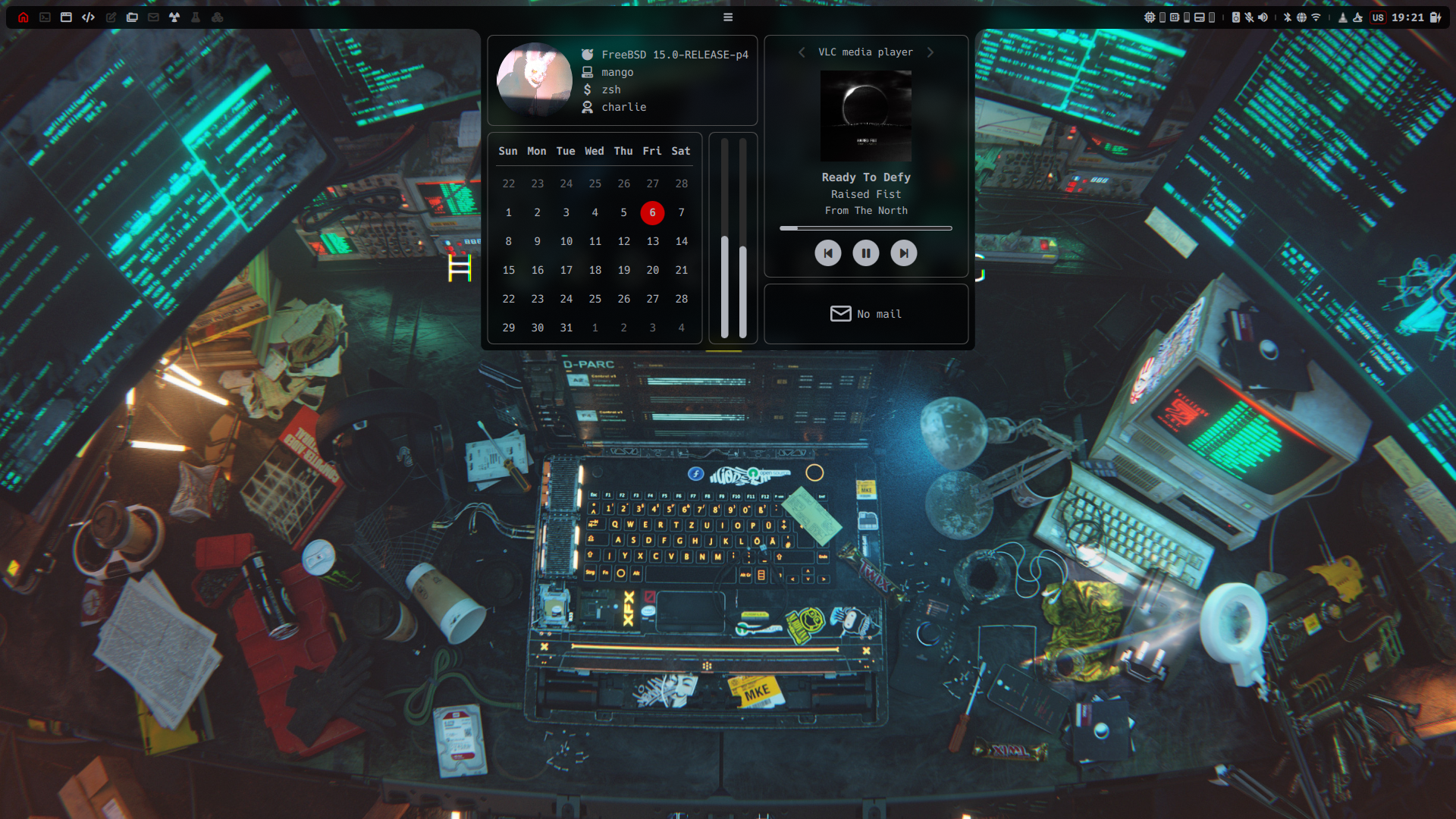
The bar alone can handle most of the tasks. It can control workspaces, media players (via dashboard), volume levels and audio devices, restart the network stack, and cycle power modes.
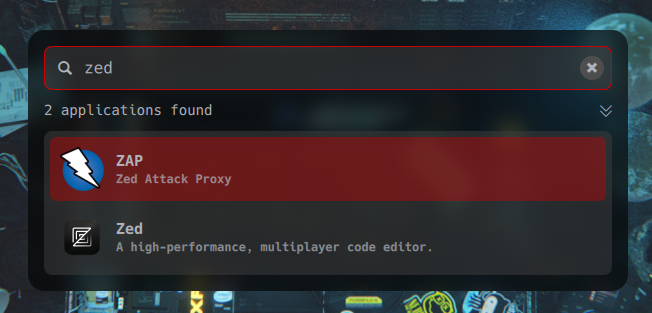
The launcher is a simple panel with a search bar and a list of applications matching the search request.
Loader {
id: launcher
active: StateslauncherPresent && Configdesktoplauncher
visible: launcheractive
sourceComponent: Launcher {}
}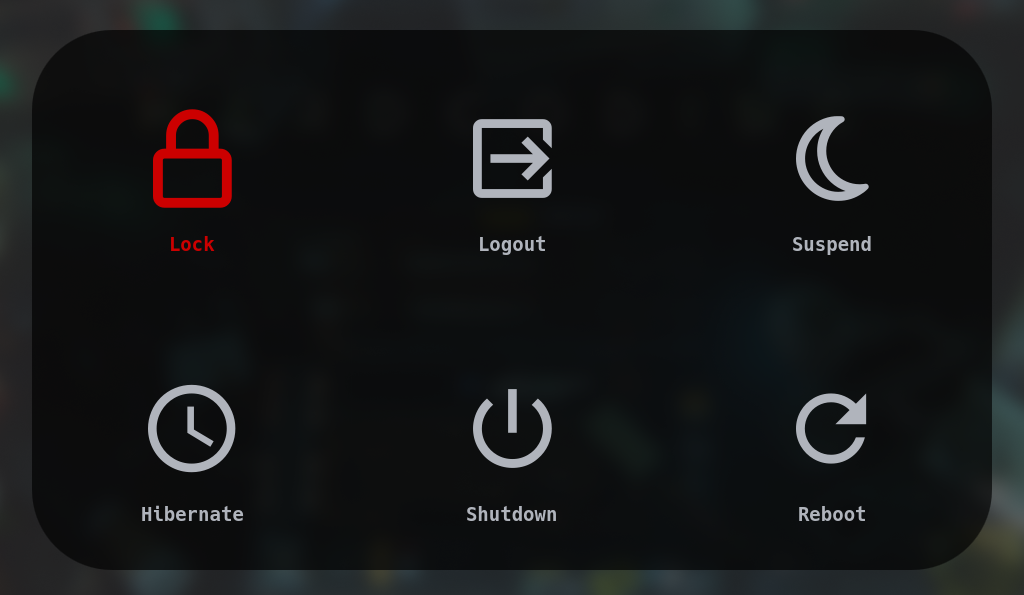
The session panel consists of six buttons that execute commands. Each button has a customizable command and a key bind. Pretty standard stuff:
Session {
SessionButton {
command: Configsessioncommandslock
keybind: QtKey_K
text: "Lock"
icon: "🔒"
}
SessionButton {
command: Configsessioncommandslogout
keybind: QtKey_E
text: "Logout"
icon: "🚪"
}
SessionButton {
command: Configsessioncommandssuspend
keybind: QtKey_S
text: "Suspend"
icon: "💤"
}
SessionButton {
command: Configsessioncommandshibernate
keybind: QtKey_H
text: "Hibernate"
icon: "⌚"
}
SessionButton {
command: Configsessioncommandsshutdown
keybind: QtKey_P
text: "Shutdown"
icon: "⏻"
}
SessionButton {
command: Configsessioncommandsreboot
keybind: QtKey_R
text: "Reboot"
icon: "🗘"
}
}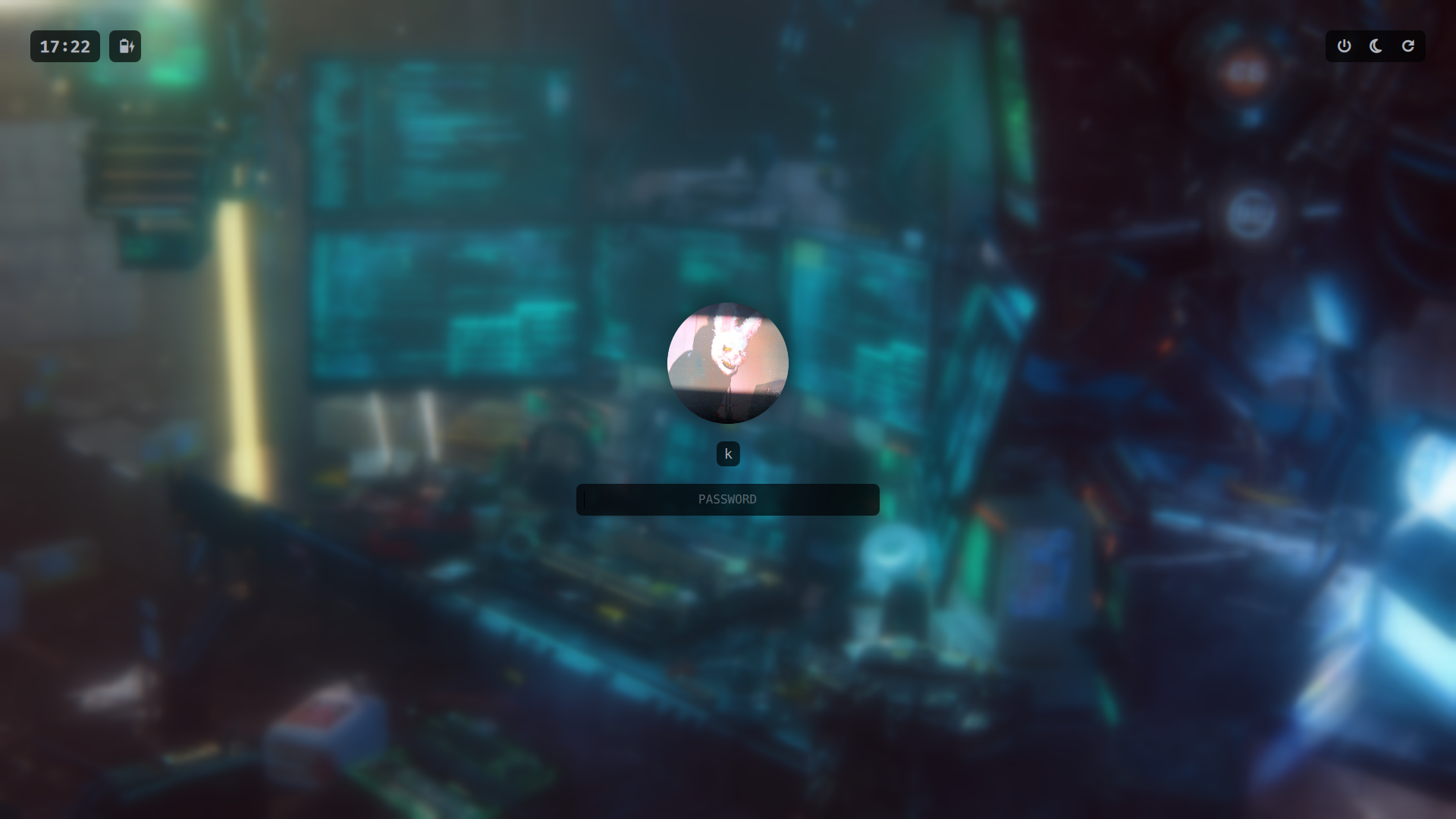
The lock screen is triggered by an idle timer or manually via IPC command. It has a secure password box that uses a flashing border as feedback, a clock and battery widget, and a few session buttons.
Process {
id: dpmsOff
command: switchSystemdesktop
case "mango"
return"mmsg" "-d" "disable_monitor"
case "hyprland"
return"hyprctl" "dispatch" "dpms" "off"
}
Process {
id: dpmsOn
command: switchSystemdesktop
case "mango"
return"mmsg" "-d" "enable_monitor"
case "hyprland"
return"hyprctl" "dispatch" "dpms" "on"
}
Process {
id: suspendProcess
command: Configsessioncommandssuspend
}
// screen lock
IdleMonitor {
timeout: 600
enabled: !StateskeepAwake
onIsIdleChanged: {
ifisIdle
locklocked = true
}
}
// disable the display
IdleMonitor {
timeout: 690
enabled: !StateskeepAwake
onIsIdleChanged: {
ifisIdle
dpmsOffrunning = true
else
dpmsOnrunning = true
}
}
// suspend the machine
IdleMonitor {
timeout: 3600
enabled: !StateskeepAwake
onIsIdleChanged: {
ifisIdle
suspendProcessrunning = true
}
}
LockContext {
id: lockContext
onUnlocked: {
StatesbarEnabled = true
locklocked = false
}
}
WlSessionLock {
id: lock
WlSessionLockSurface {
color: "transparent"
LockScreen {
anchors.fill: parent
context: lockContext
}
}
}This is the very beginning, but I am very happy with the results so far. QML is very easy to work with, and Quickshell already packs everything to deliver a full desktop environment.
Comment by replying to this post using a Mastodon or other ActivityPub/Fediverse account.